Why This Matters
Adding WhatsApp to your OpenClaw agent sounds straightforward — until you actually try. Most developers and small teams hit the same wall: the AI layer powering the bot is either locked to one vendor, gets expensive fast at scale, or requires a CS background to configure properly. You end up paying a markup on every API call, and switching to a cheaper or smarter model? Not an option. The integration itself turns into a full-time job.
What makes it worse is that WhatsApp's own API expects your system to be stable and consistent — meaning your AI layer has to be properly deployed before you even touch the messaging layer. If your bot platform bundles AI in, the day they raise prices, swap models, or throttle you, your entire WhatsApp workflow goes down with it. Businesses that rely on automated customer conversations can't afford that brittleness, yet most no-code tools push you right into that trap.
I spent three weeks getting my OpenClaw bot tuned just right, then the platform doubled the AI cost per message. Now I'm effectively paying twice for the same thing. I built this myself — why should I?
— r/nocode
Why do these bot tools force you to use their AI key? I have my own Claude API key right here and just want to plug it in. Instead it's all workarounds, paying middlemen, when I could connect it myself — but the UI locks everything down.
— r/Entrepreneur
| Approach | Cost control | Model choice | Setup difficulty | Ongoing maintenance |
|---|---|---|---|---|
| Platform-bundled AI | None — fixed markup | Single model locked | Low | Fully vendor-dependent |
| Self-hosted bot | Full — you control it | Any model | High (server ops required) | All on you |
| Zapier / Make | Limited — per trigger | Limited | Medium | Webhooks often break |
| Weavin + OpenClaw ✦ | BYOK — pay model only | Claude / GPT / Gemini | No code, 5 min | Platform-hosted |
What You'll Have at the End
You will get
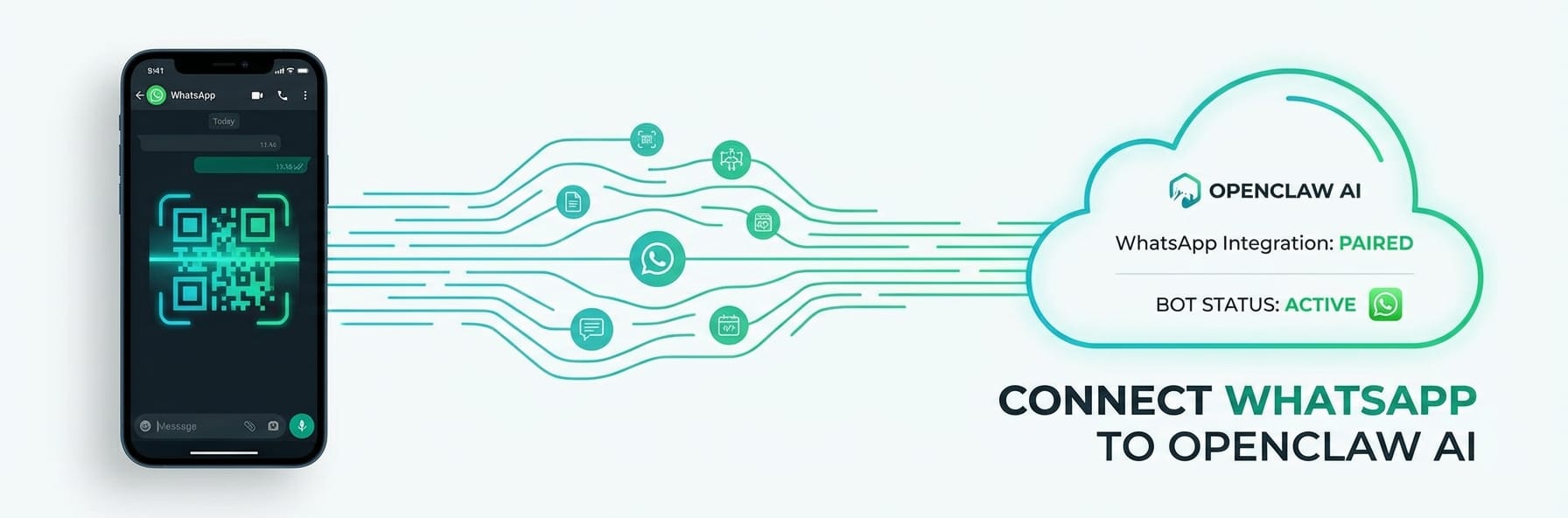
- Your OpenClaw AI agent live on WhatsApp in under 5 minutes
- Fully automated WhatsApp responses powered by Claude, GPT, or Gemini
- No code written, no developer needed, no complicated API wiring
- One dashboard to manage WhatsApp alongside Telegram, Discord, Slack, and Lark
Step-by-Step Guide
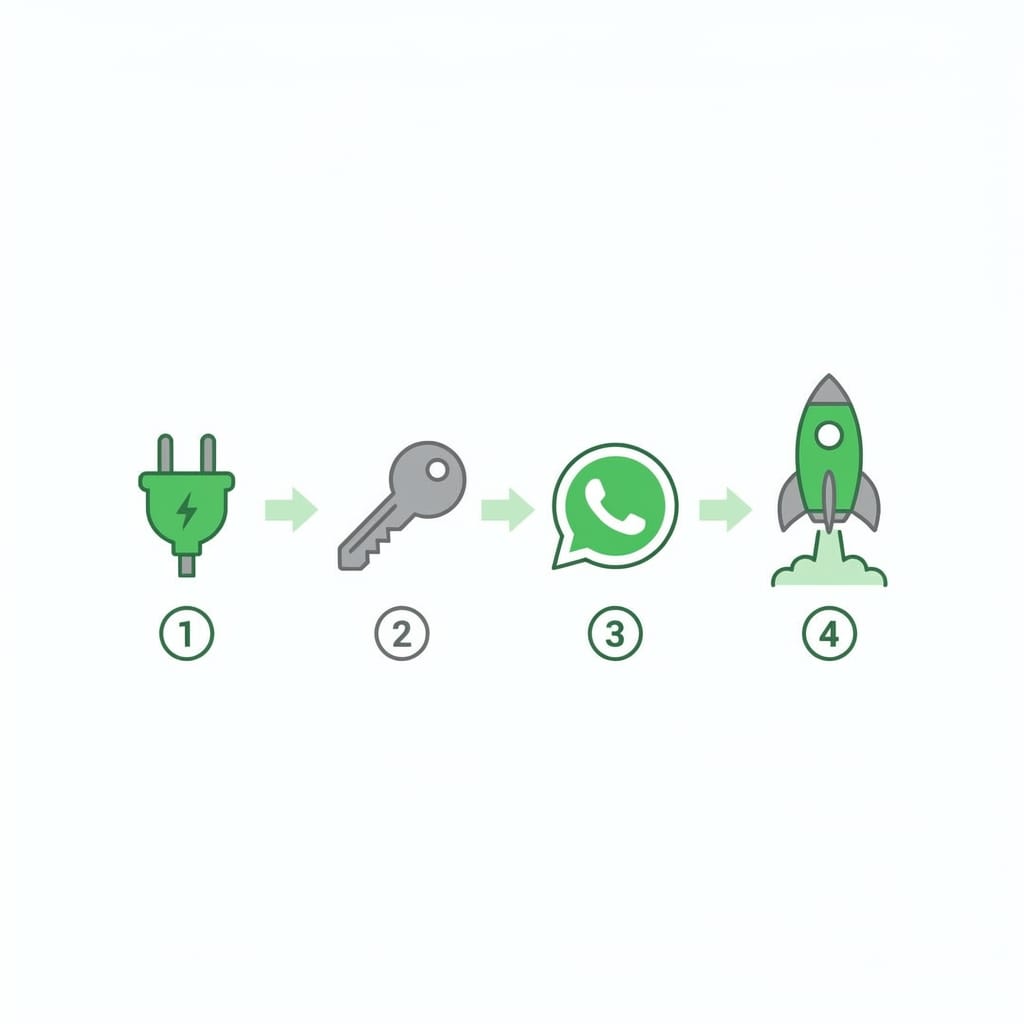
Click each step to expand. The whole process takes about 5 minutes.
Connect Your AI API Key to Weavin ~2 min
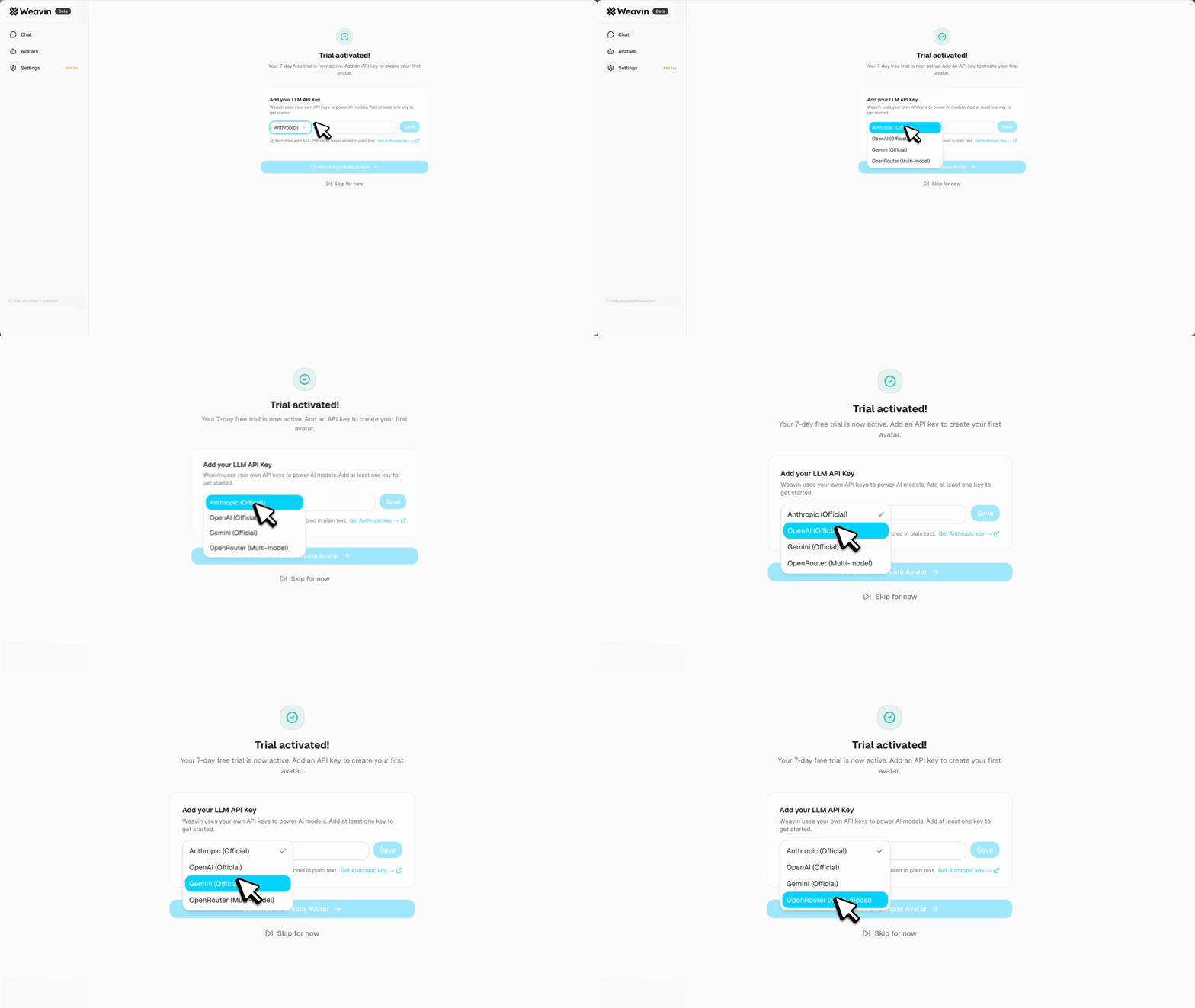
Before adding WhatsApp, make sure your OpenClaw agent is powered by your own API key. Weavin supports BYOK (Bring Your Own Key) for Claude, GPT, and Gemini.
- Log in to your Weavin dashboard and open your OpenClaw agent
- Navigate to Agent Settings → AI Provider
- Select your preferred provider (Claude, GPT, or Gemini)
- Paste your personal API key into the API Key field and click Save
Open the Channels Panel and Select WhatsApp ~2 min
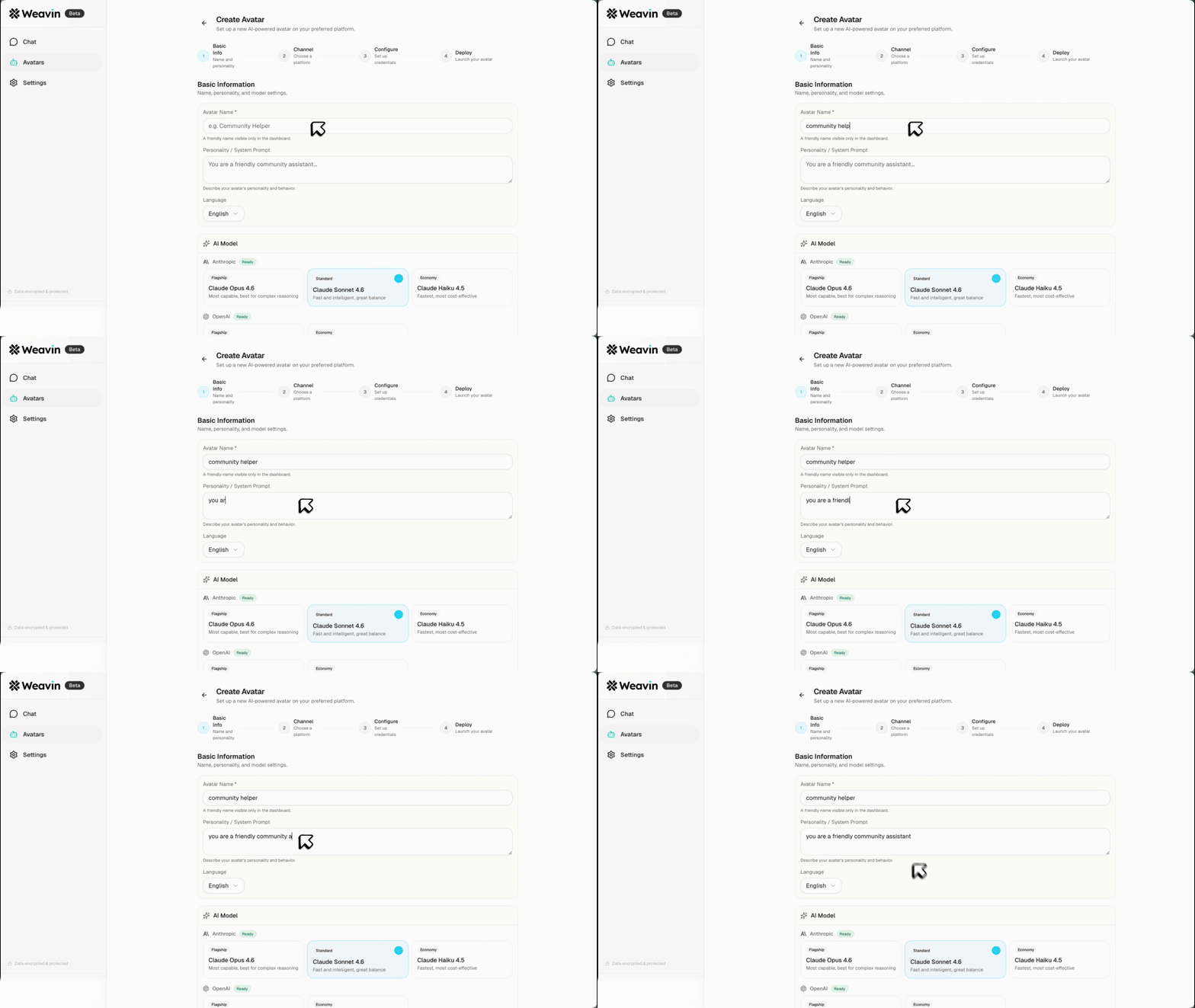
With your API key confirmed, you can now add WhatsApp as a live channel directly from the agent interface.
- From your OpenClaw agent page, click the Channels tab in the left sidebar
- Locate the WhatsApp channel card and click Connect
- Review the permissions summary — your BYOK key will handle all AI inference costs for this channel
- Click Continue to Setup to proceed to the WhatsApp configuration screen
Link Your WhatsApp Business Account ~3 min
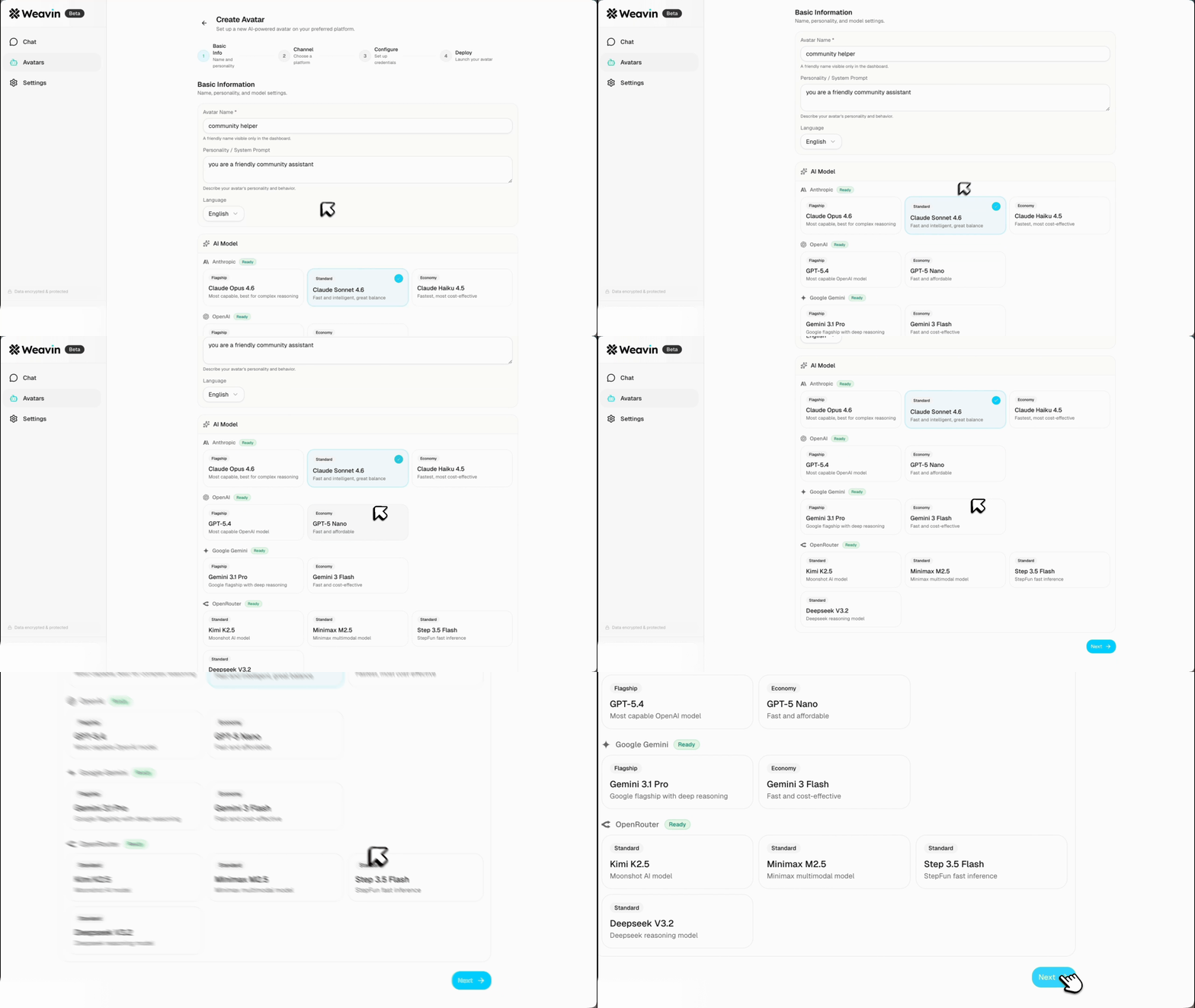
Weavin uses the WhatsApp Business API (via Meta) to connect your number. You will need a verified Meta Business account ready.
- Click Connect via Meta and log in to your Meta Business account when prompted
- Select or create a WhatsApp Business Account (WABA) to link to this agent
- Choose the phone number you want to use, or register a new one through the Meta flow
- Complete the verification steps in the Meta popup, then return to Weavin — your number status should show Active
Test Your WhatsApp Agent with Your API Key ~2 min
Run a quick end-to-end test to confirm that incoming WhatsApp messages are routed through your OpenClaw agent and processed using your own API key.
- From the Channels → WhatsApp panel, copy the linked phone number
- Send a test message to that number from your personal WhatsApp
- Return to Weavin and open Conversations to confirm the message was received and a reply was generated
- Check Agent Logs to verify the response was billed to your own API key and not a Weavin-managed key
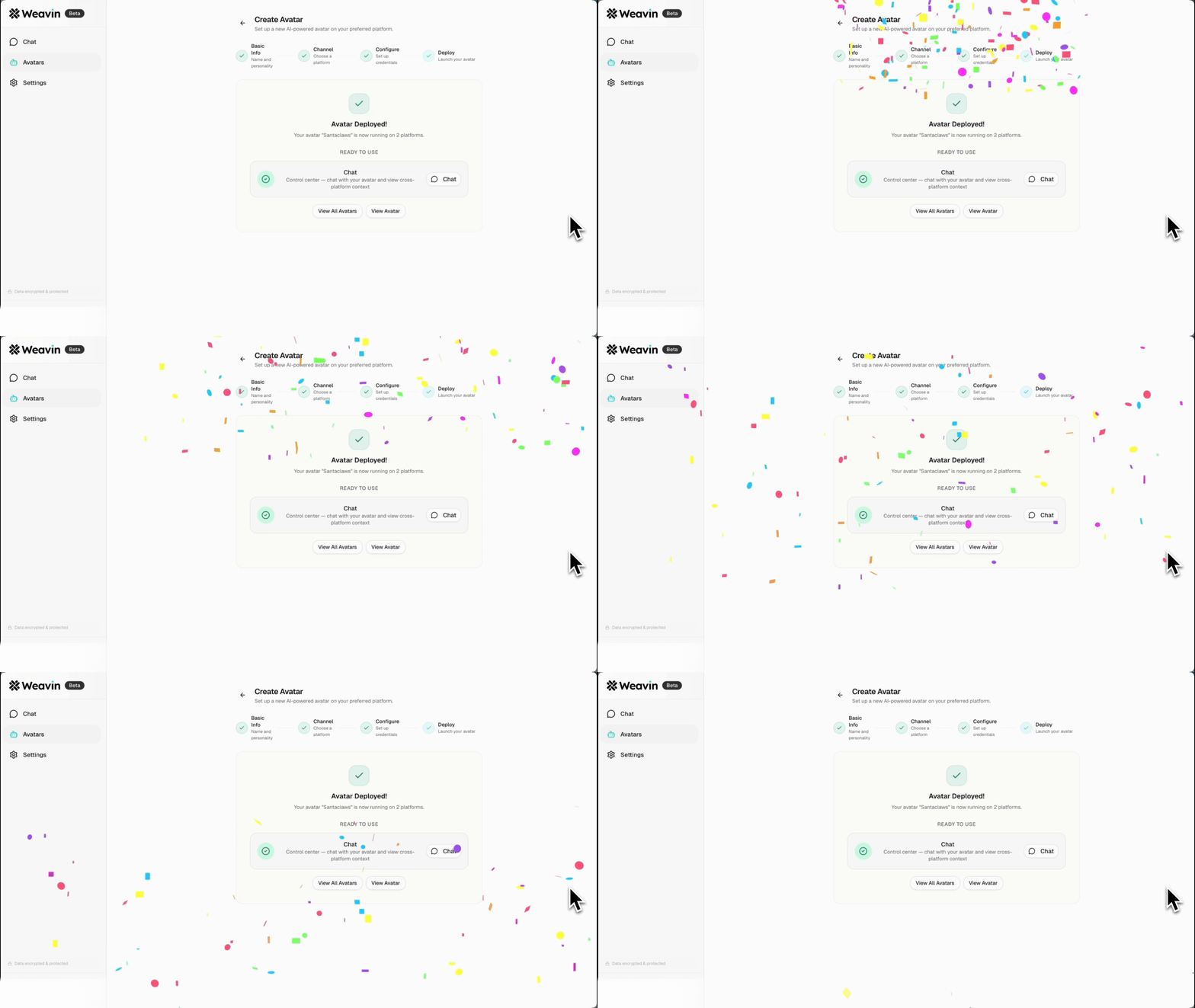
What Happens After Launch
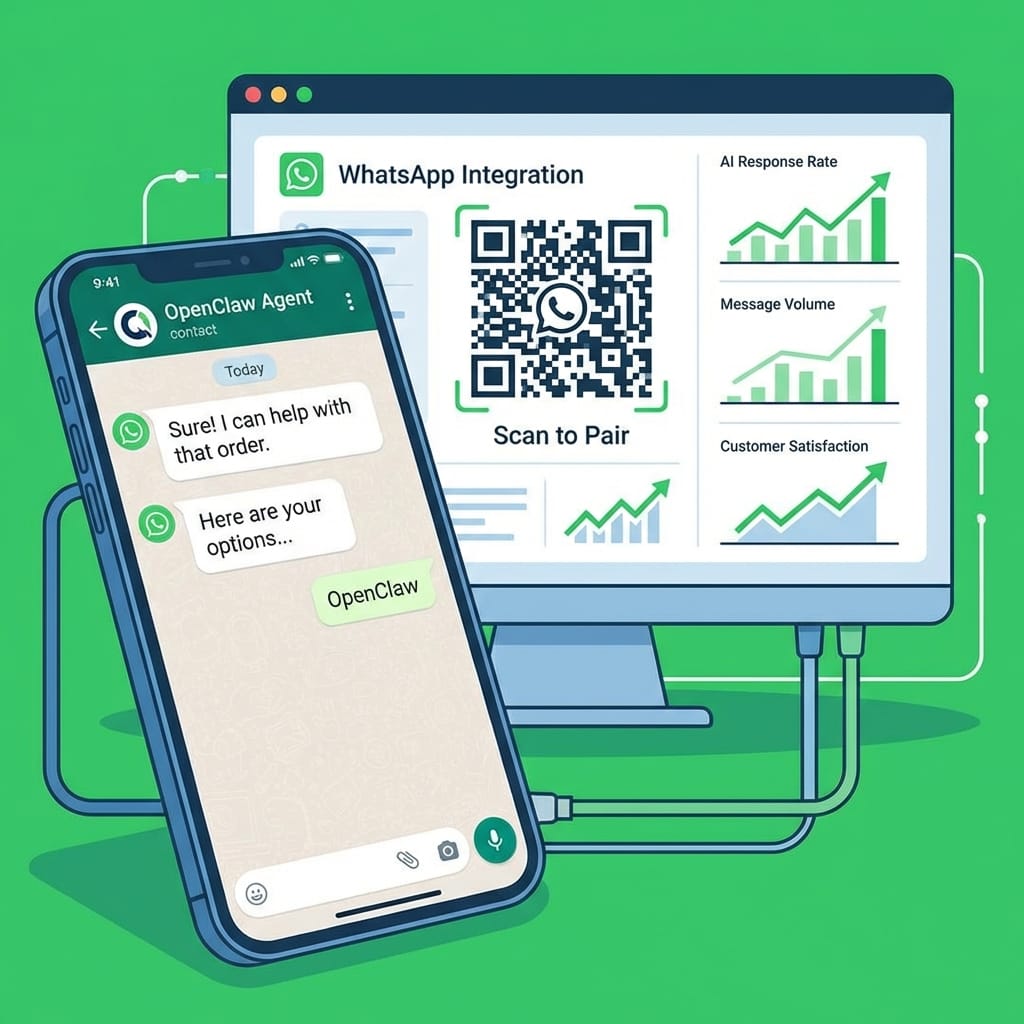
Real Use Cases Right Now