Why Your Community Needs a 24/7 AI Bot
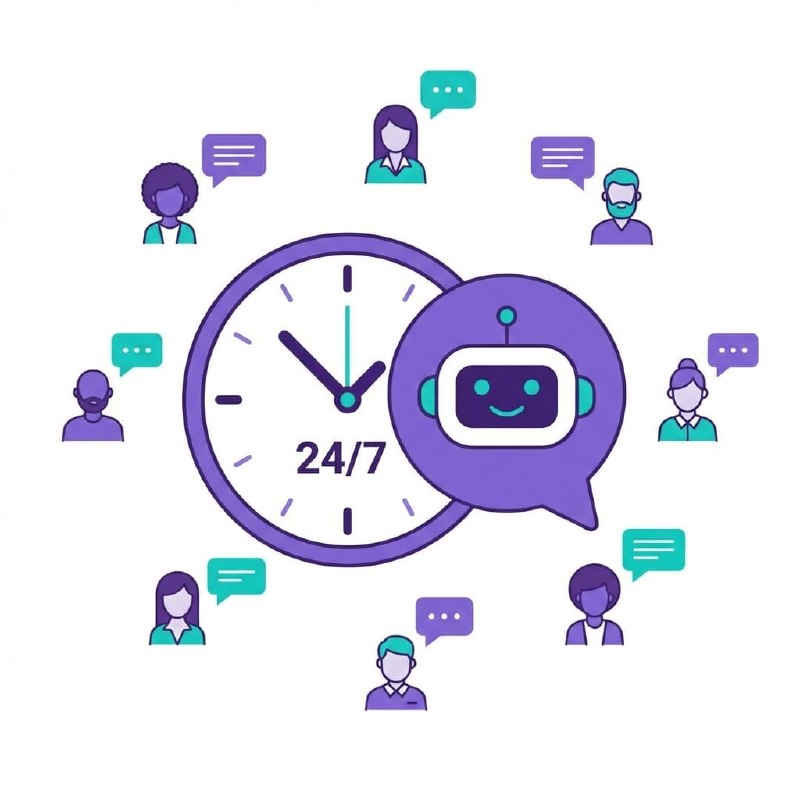
Someone joins your Telegram group at 3am with a question. Maybe they're in a different timezone. Maybe they just found your community through a friend. The question is simple — the kind you've answered a hundred times — but there's nobody online to answer it.
They wait. Nobody responds. They leave.
This happens more than most community managers realize, because by the time you're online the next morning, that person is already gone. You never see the missed interaction. You just slowly notice that your community's retention isn't what it should be.
A 24/7 AI bot doesn't solve every community problem. But it solves this one completely.
What "24/7" Actually Means for a Community Bot
A 24/7 community bot is not a chatbot that sits on a webpage waiting for someone to click "chat with us." It's an active participant in your existing community spaces — your Telegram group, your Discord server, your Slack workspace — that reads messages and responds in real time, around the clock, without you doing anything.
It handles:
- Questions that come in outside your active hours
- Repetitive questions you've answered a hundred times
- New member onboarding and welcome messages
- Scheduled announcements and digests
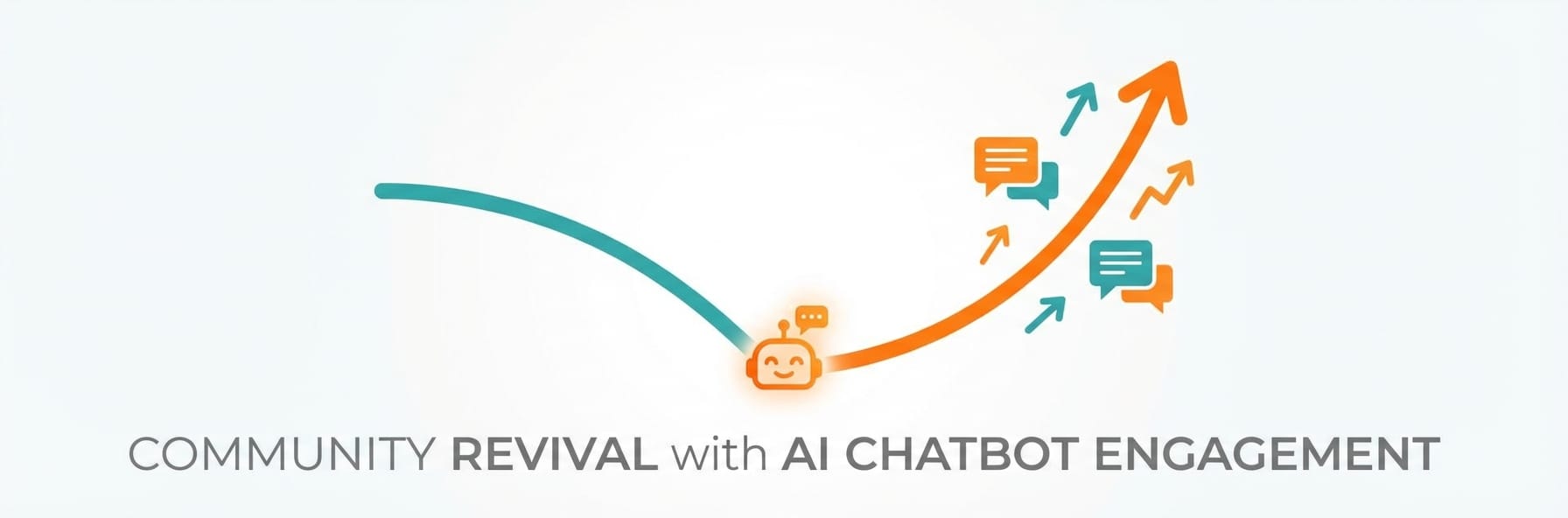
- General engagement when the group goes quiet
It doesn't replace you or your team. It covers the gap so nothing falls through it.
The other options don't really save you either. Pre-built chatbot platforms force you onto their AI model — you get no say in quality, cost, or what happens to your data. Self-hosting puts you in control, but then you're dealing with servers, DevOps headaches, and random 3 AM troubleshooting sessions that most community builders signed up for exactly zero of. Tools like Zapier can duct-tape things together, but they were built for automations, not for running a real back-and-forth AI presence — and the bill gets ugly fast once your community picks up steam. What people actually want is pretty simple: bring your own AI model, know what you're paying each month, and get it running without touching a single line of code.
"I spent three weekends trying to get a GPT-4 bot running on my server. Followed four different tutorials, broke it twice, finally got it working — then OpenAI changed something and it just stopped. I don't have time for this. I just want it to answer questions about my community without me babysitting it constantly."
— r/discordapp
"The platform I was using charged per message AND took a cut if I wanted to use a better model. My members were getting slow, outdated responses and I was paying more than my hosting costs. Switched to bringing my own API key somewhere else and my bill dropped by 60%."
— r/entrepreneur
Before You Set Anything Up: Three Decisions to Make
1. Which platform comes first?
If your community lives in one place, the answer is obvious. If you're spread across Telegram, Discord, and Slack, start with your highest-traffic platform and expand from there. The bot configuration you create carries over — you don't rebuild it for each platform.
2. What is the bot primarily for?
The clearest bots have a defined primary job. Pick one:
- Answering FAQs and common questions
- Welcoming and onboarding new members
- Providing information about a specific topic (your product, a market, a game)
- General engagement and conversation
You can add more functions later. Starting focused makes the bot measurably better at what it does.
3. What should the bot never do?
Equally important. Common examples:
- Never discuss competitor products
- Never give specific financial or legal advice
- Never make commitments on behalf of the team
- Never engage with trolls or hostile users beyond a single calm response — see our guide on AI moderation
Define this before setup, not after an incident.
What You'll Have at the End
You will get
- A fully operational AI bot live in your community channel in under 5 minutes
- Automated answers to member questions around the clock without any human intervention
- Full control over which AI model powers your bot using your own API key
- A scalable support system that grows with your community at a predictable monthly cost
Step-by-Step Guide
Click each step to expand. The whole process takes about 5 minutes.
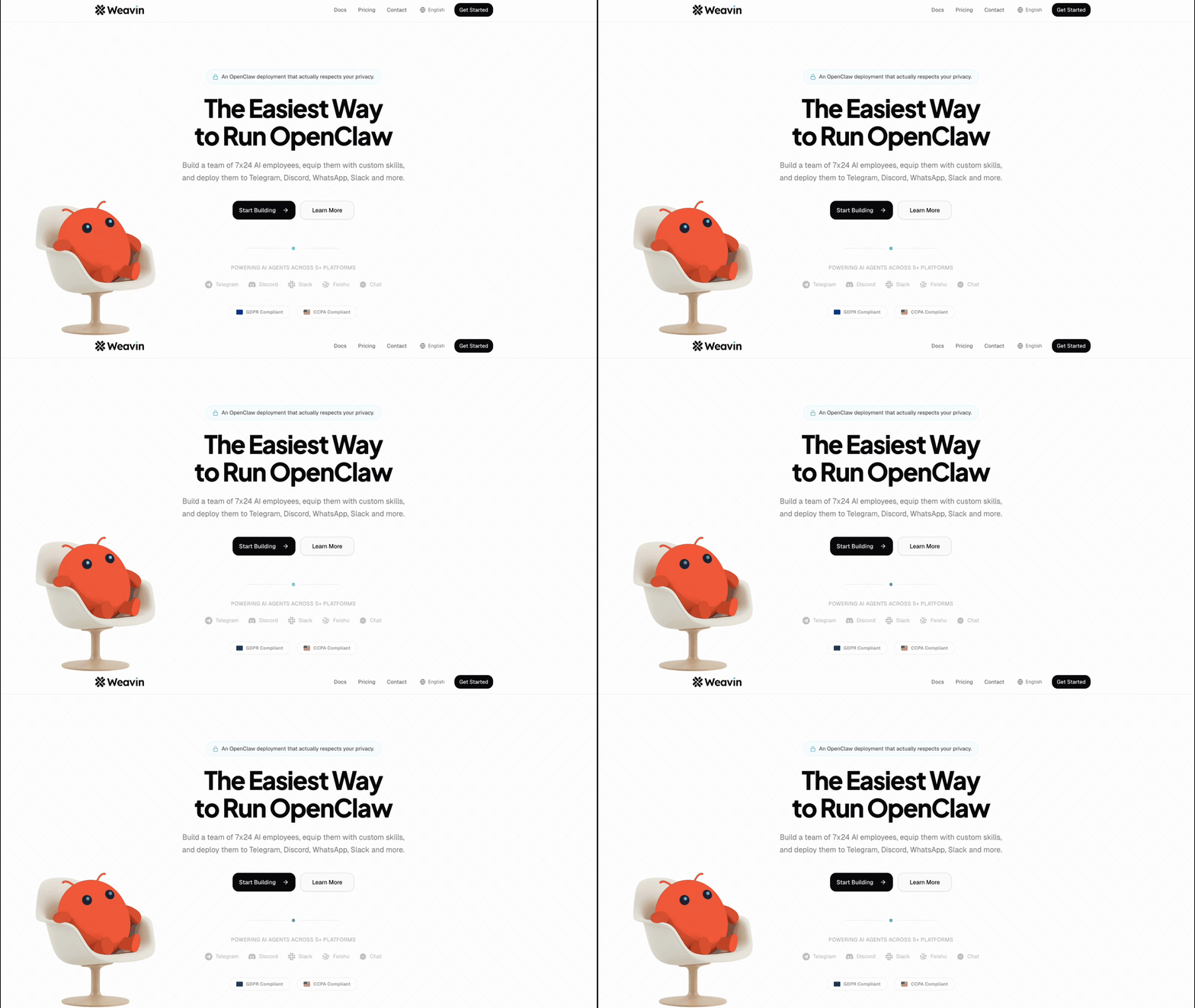
Connect Your AI Provider API Key to Weavin ~3 min
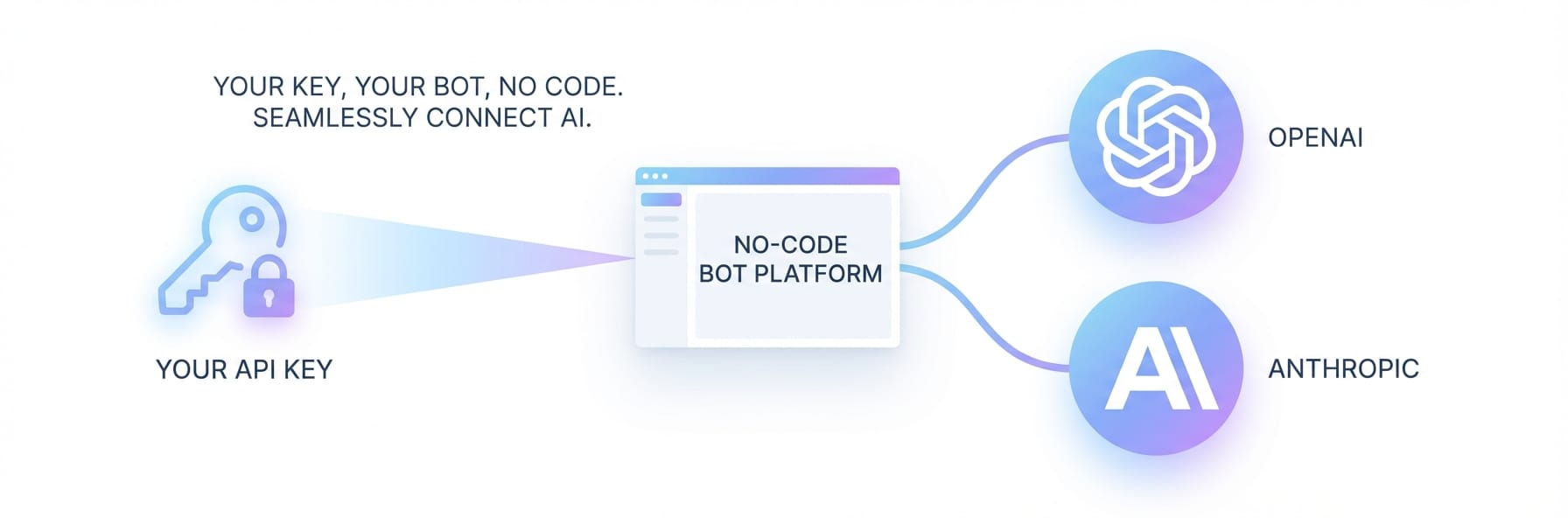
Weavin supports Bring Your Own Key (BYOK), meaning you pay provider rates directly with no markup. Start by grabbing your key from your chosen provider.
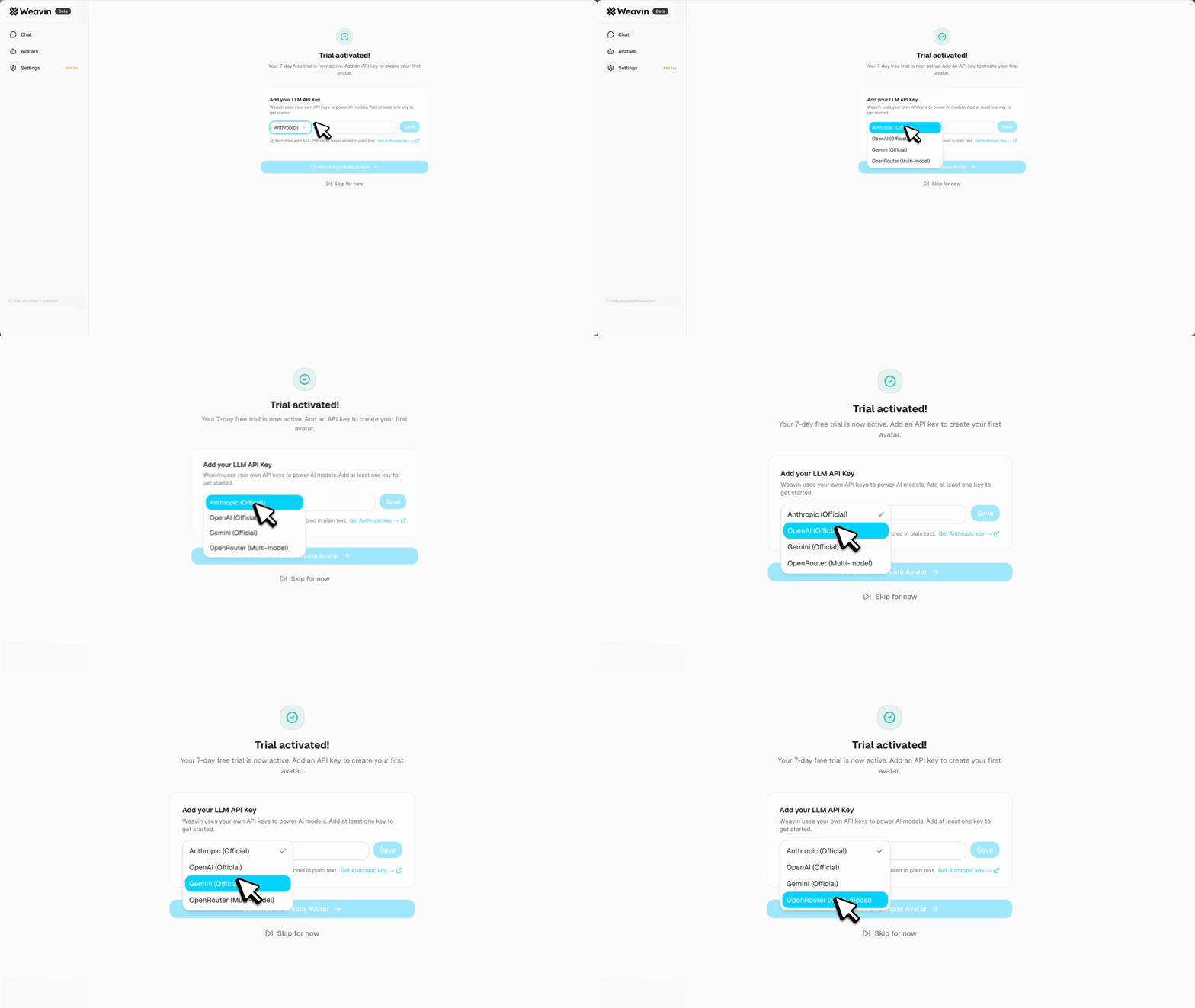
- Log in to your Weavin dashboard and navigate to Settings → AI Providers
- Choose your provider: Anthropic (Claude), OpenAI (GPT), or Google (Gemini)
- Paste your API key into the designated field — Weavin encrypts it at rest immediately
- Click Verify Key to confirm the connection is live before moving on
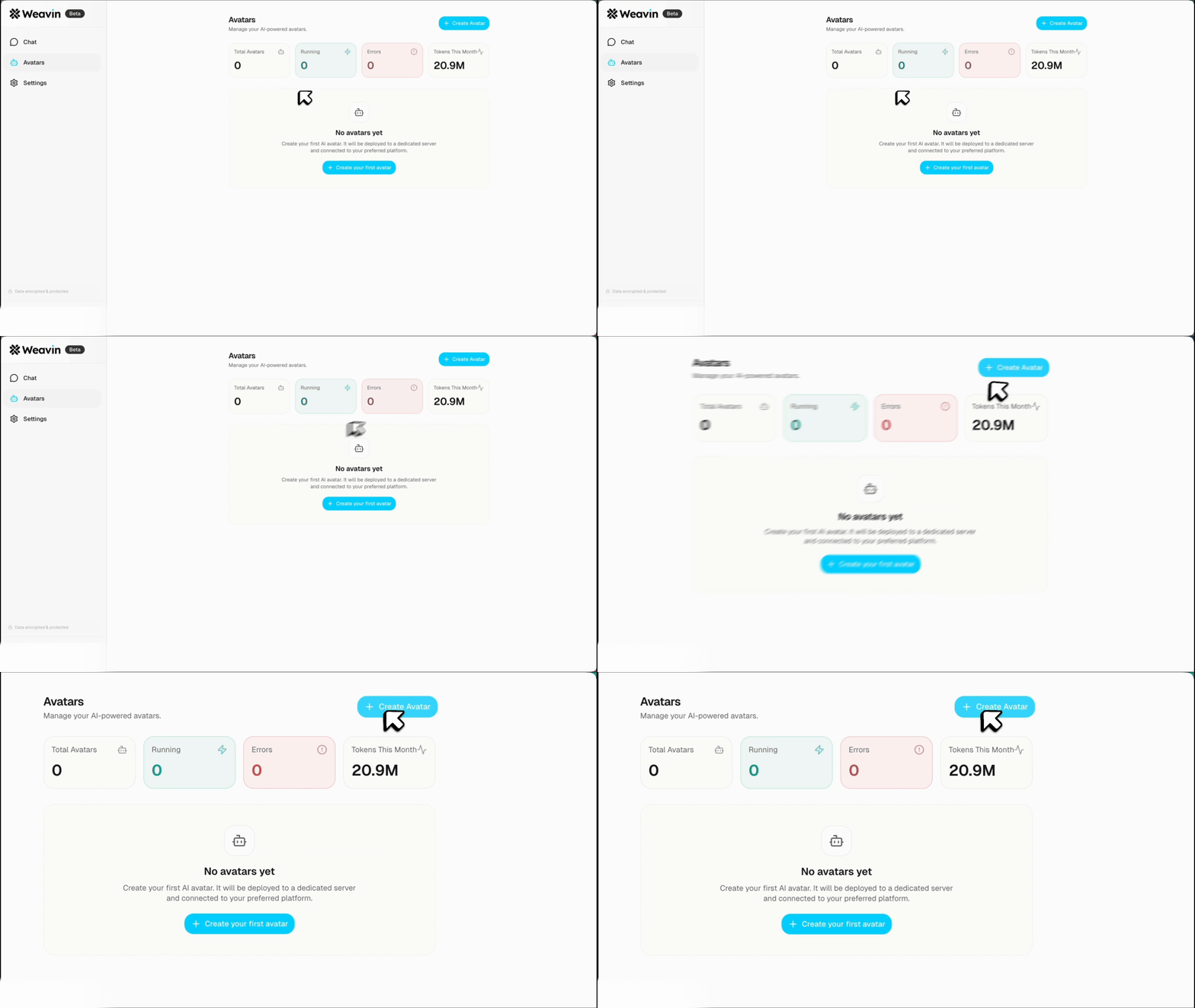
Create Your Avatar and Define Its Identity ~5 min
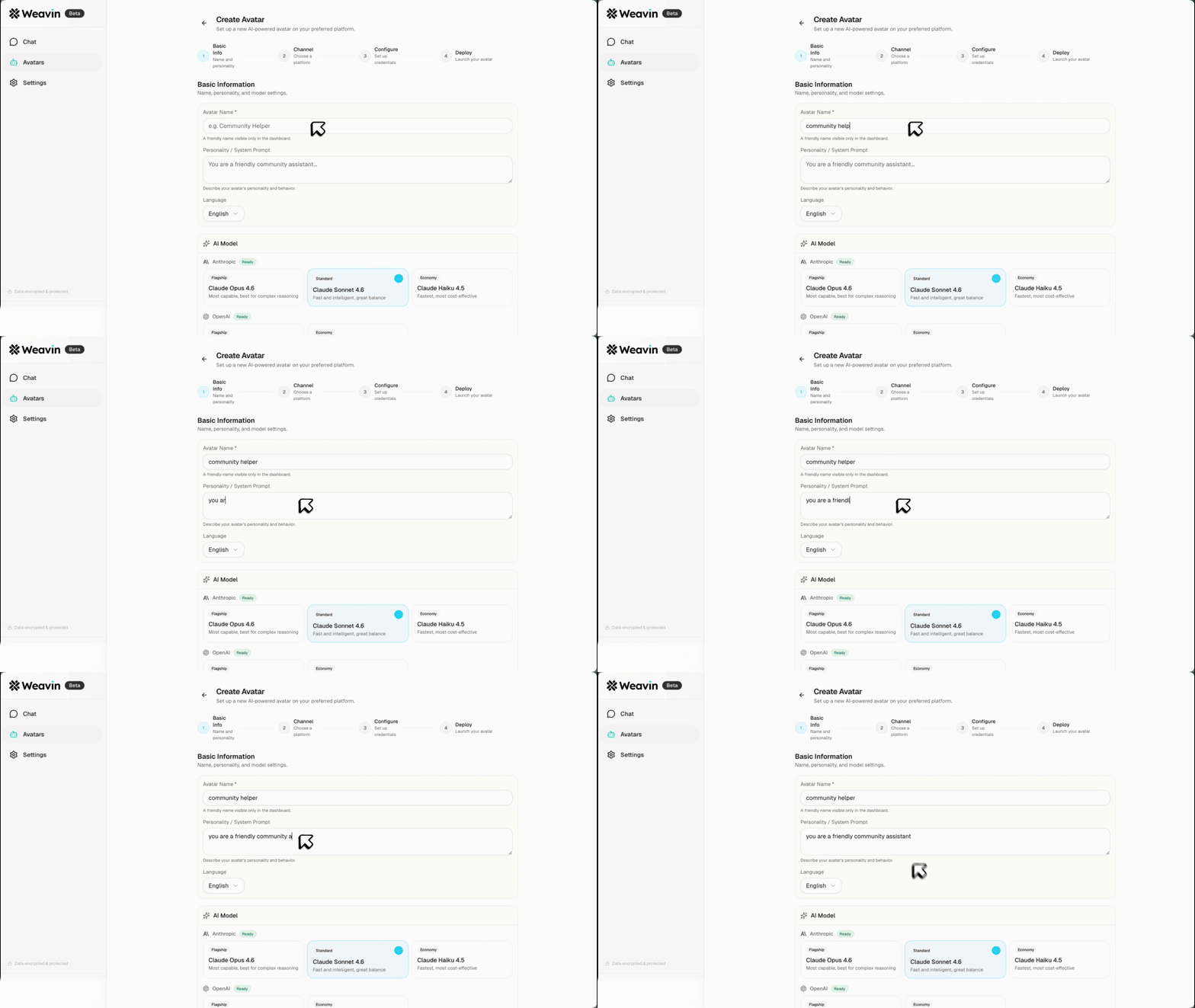
Click "Create New Avatar" from your dashboard. This is your bot — Weavin calls them Avatars because they're more than a simple bot. They have a persistent identity, memory, and a consistent personality across every platform they're connected to.
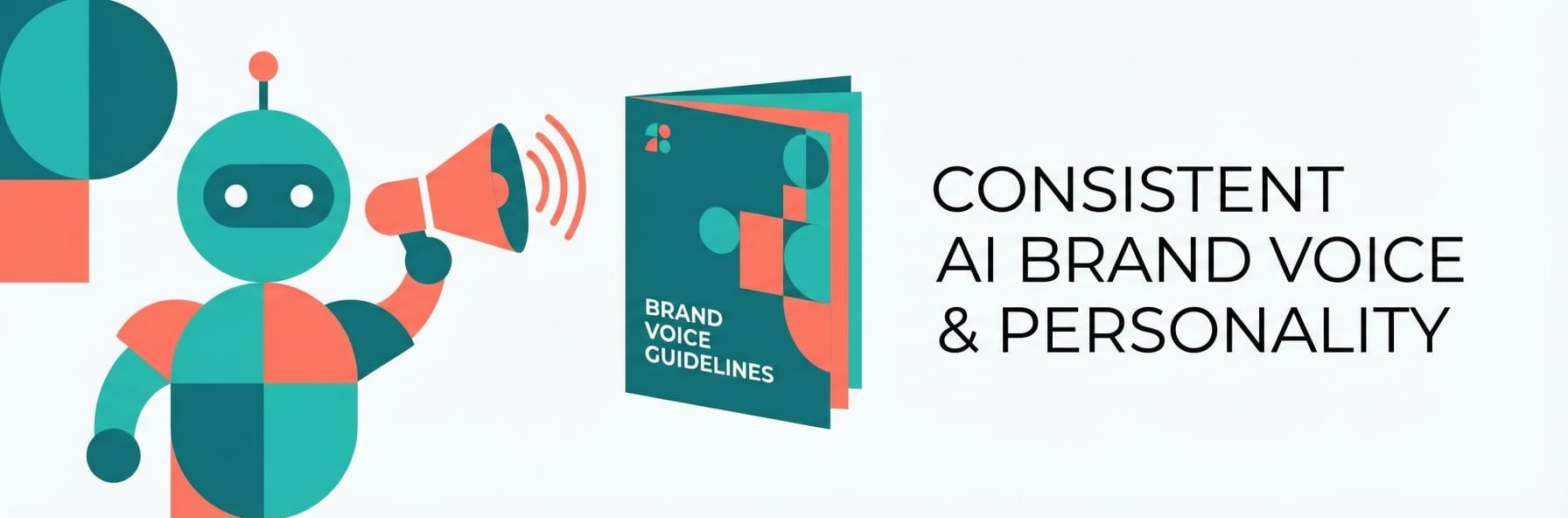
This is the most important step and the one most people rush. What you write here determines how your bot will behave in every single conversation it has.
Fill in:
- Name — Give your bot a real name, not "Bot" or "Assistant." If your community is called Apex Trading, your bot might be "Apex" or "Max" or whatever fits the culture.
- Role and personality — Write two to three sentences describing who this bot is. Not what it does — who it is.
Good example:
"You are Milo, the community host for the Apex Trading group. You know markets well and explain things simply without talking down to people. You're direct, slightly informal, and genuinely helpful — you don't give non-answers."
Bad example:
"You are a helpful assistant for our community. You answer questions helpfully and professionally."
The first one will produce a bot with a consistent, recognizable voice. The second will produce a bot that sounds like every other AI on the internet.
- What it knows — Add context about your community, common questions, and any specific information the bot should have. Think of this as a briefing document:
- What is the community about?
- What questions do members ask most often?
- Are there specific terms, rules, or resources the bot should know about?
- What's the community culture like?
Choose Your AI Model ~2 min
Weavin supports Claude, GPT, Gemini, and several others. For most community bots, Claude Sonnet or GPT-4o are strong defaults — capable enough to handle complex questions, fast enough that responses don't feel delayed.
If you already have an API key from Anthropic, OpenAI, or Google, you can bring it directly (BYOK — Bring Your Own Key). This means model costs come from your own quota rather than Weavin's platform credits.
If you don't have one, Weavin's built-in model access works fine to start.
Train the Bot on Your Community's Knowledge ~8 min
Make your bot genuinely useful by grounding it in your community's actual content — FAQs, rules, guides, and more.
- Navigate to Knowledge Base → Add Sources inside your bot's settings
- Upload documents (PDF, DOCX, TXT) such as your community rules, onboarding guides, or product FAQs
- Optionally paste URLs and Weavin will scrape and index the page content automatically
- Wait for the Indexed status badge to appear — this confirms the bot can now cite and reference your material accurately
Connect Your Platform ~4 min
Finally, connect the bot to your community platform. Each connection takes under two minutes once you have the token.
For Telegram:
- Open Telegram and search for @BotFather
- Send
/newbot, follow the prompts to name your bot - Copy the token BotFather gives you
- Back in Weavin, select Telegram, paste the token, click Connect
For Discord:
- Go to discord.com/developers and create a new application
- Under the Bot tab, create a bot and copy the token
- In Weavin, select Discord, paste the token, click Connect
For Slack:
- Go to api.slack.com and create a new app
- Grant the required permissions (Weavin will tell you exactly which ones)
- Copy the bot token and paste it into Weavin
If you're connecting multiple platforms, do them one at a time — each one is a separate token from its respective platform.
Configure Availability Behavior ~3 min
This is where the 24/7 part is explicitly managed. In your Avatar settings:
- Response mode — Set to "Always on." This means the bot responds to every message it receives, at any hour, with no manual intervention.
- Group behavior — Decide whether the bot responds to every message in the group, only messages that mention it directly, or only questions (messages ending in "?"). For busy groups, "mention only" or "questions only" is usually better — it prevents the bot from dominating every conversation.
- Handoff rules — Set conditions for when the bot should escalate to a human. Example: "If a user expresses frustration more than twice, add a note that a team member will follow up." This keeps the bot from getting into loops with people who need a human.
Set Up Scheduled Messages (Optional) ~5 min
This is the feature most community managers underuse. Your bot can send automatic messages on a schedule:
- Daily morning digest ("Here's what's happening in the community today")
- Weekly summary of top discussions
- Timed announcements for events or launches
- Periodic reminders of community rules or resources for new members
Set these up in the Avatar's scheduling panel. You write the message once, set the time and frequency, and it runs indefinitely until you change it.
Test Before Going Live ~5 min
Before you add the bot to your real community, test it in a private group or DM:
- Ask the three most common questions your community has — does it answer them correctly and in the right voice?
- Ask something it shouldn't know — does it handle uncertainty gracefully?
- Ask something off-topic or slightly hostile — does it stay in character?
- Send a casual greeting — does it respond warmly without being weird about it?
If anything feels off, go back to the identity and personality settings and tighten the language. Most issues trace back to a vague or contradictory system prompt, not the AI model itself.
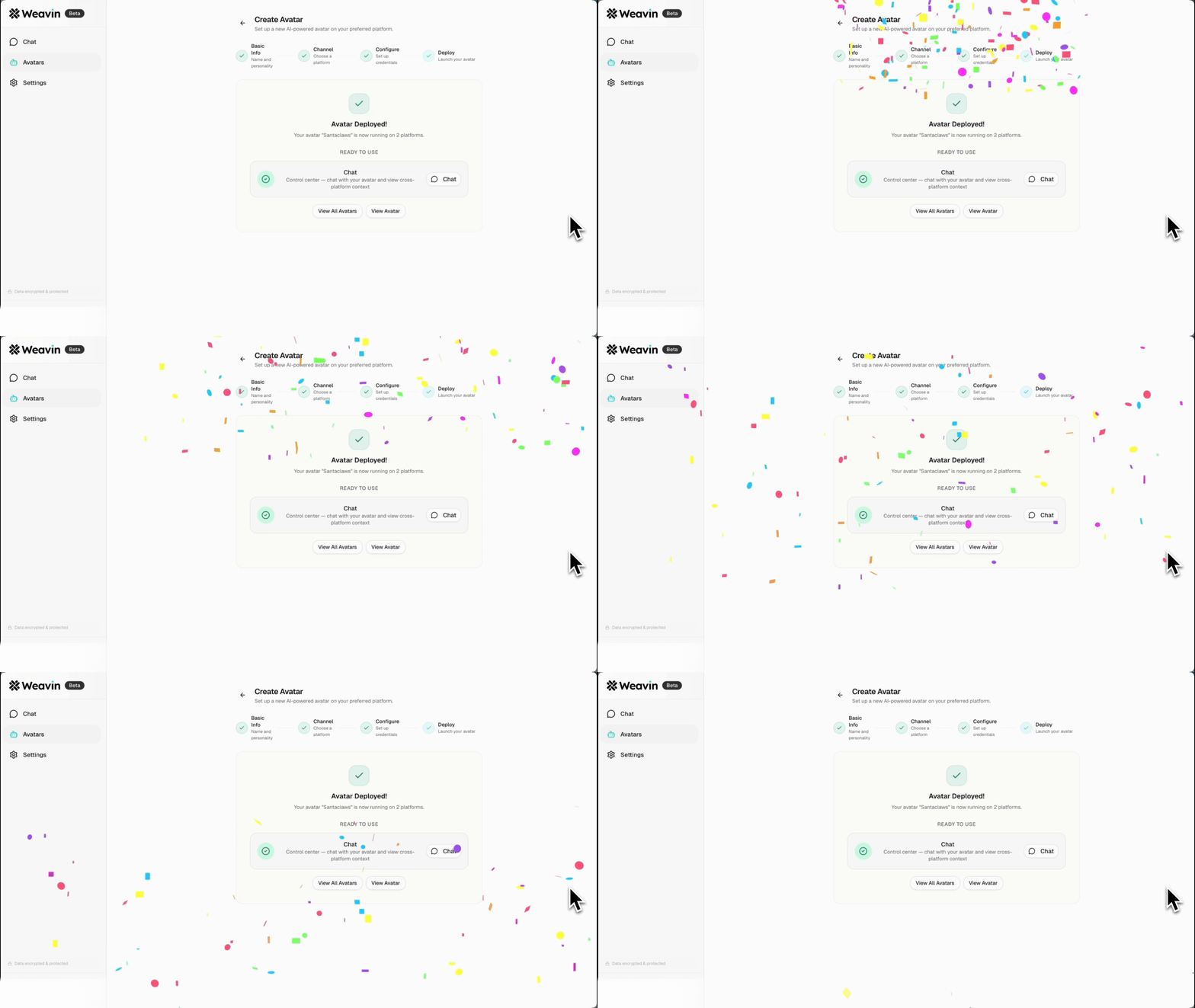
Launch and Monitor the First 48 Hours Ongoing
Add your bot to your community group and let it run. For the first 48 hours, read through its responses to see how it's performing. You're looking for:
- Responses that are off-brand or use the wrong tone
- Questions it couldn't answer that it should be able to
- Anything it said that was factually wrong or misleading
Use what you find to update the personality description and knowledge base. After two or three rounds of this, most bots reach a stable, reliable state that needs minimal maintenance.
What Happens After Launch
What to Expect at Different Community Sizes
Under 500 members
The bot's biggest value is availability — covering hours when you're not online. Response volume is low enough that you can read every bot exchange and tune it quickly.
500–5,000 members
The bot starts saving meaningful time. You'll notice a drop in repetitive questions reaching you directly. Start using the scheduled messaging feature to maintain activity during slow hours.
5,000+ members
At this scale, a bot isn't optional — it's infrastructure. The bot is handling a significant percentage of first-contact interactions. Focus on refining its knowledge base and handoff rules so edge cases get escalated appropriately.
The Honest Limitations
A 24/7 bot is not a community manager replacement. There are things it can't do:
It can't build relationships.
It can be warm, consistent, and genuinely helpful — but the deep sense of community belonging comes from human interaction. The bot handles the transactional; you handle the relational.
It will occasionally get things wrong.
No AI model is perfect. The goal is to minimize errors through a well-written system prompt and catch the ones that slip through during your monitoring periods.
It can't handle genuine crises.
Heated conflicts, sensitive situations, members in distress — these need a human. Make sure your handoff rules are specific enough that the bot escalates rather than fumbles these.
The bots that work well are the ones deployed with clear expectations: covering availability gaps, handling known questions, keeping conversations active. That's a lot of real value — just don't expect it to replace human judgment.
Real Use Cases Right Now