Why This Matters
If you've been trying to connect OpenClaw to Telegram, you already know how quickly it turns into a headache. The setup is all over the place, documentation is scattered across three different sites, and just when something actually works — a token expires, an API limit hits, and you're starting over. Most tutorials are written for developers who have a free afternoon and don't mind staring down cryptic error messages. But for marketers, small business owners, and community managers who just want a decent bot running in their channel? The whole thing feels way harder than it needs to be.
Then there's the cost and control issue, which honestly makes things worse. When a platform bundles its own AI model into the bot setup, you lose all visibility — you don't know which model is actually handling your conversations, you can't see what you're spending per query, and switching to something cheaper or better down the road means rebuilding everything from zero. You're just stuck with whatever pricing decisions they make for you. For anyone running a high-volume Telegram bot, that gets expensive fast. What people actually want is pretty simple: bring your own API keys, pick your own model, plug it into Telegram, and skip the part where you write any code.
"I spent three weekends trying to get a Telegram bot connected to a decent AI backend. Every solution either required me to manage a server or charged me a flat monthly fee regardless of how much I actually used it. I just want to pay for what I use and not babysit infrastructure."
— r/Telegram
"The worst part isn't the setup — it's six months later when something breaks at 2am and you realize you have no idea how the pieces fit together anymore. I've rebuilt this thing four times. There has to be a better way to deploy an AI bot without becoming a full-time DevOps person."
— r/selfhosted
What You'll Have at the End
You will get
- A fully functional OpenClaw-powered AI bot running live on Telegram
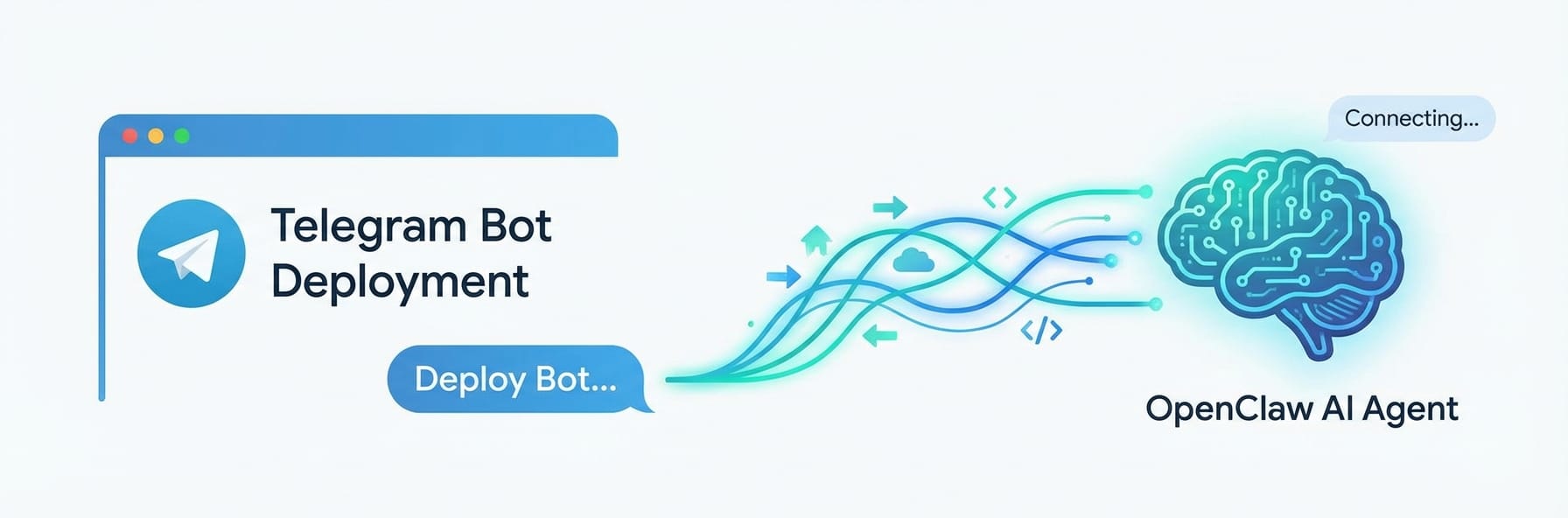
- Zero code written — configured entirely through Weavin's visual interface
- Your own API key (BYOK) connected for Claude, GPT, or Gemini models
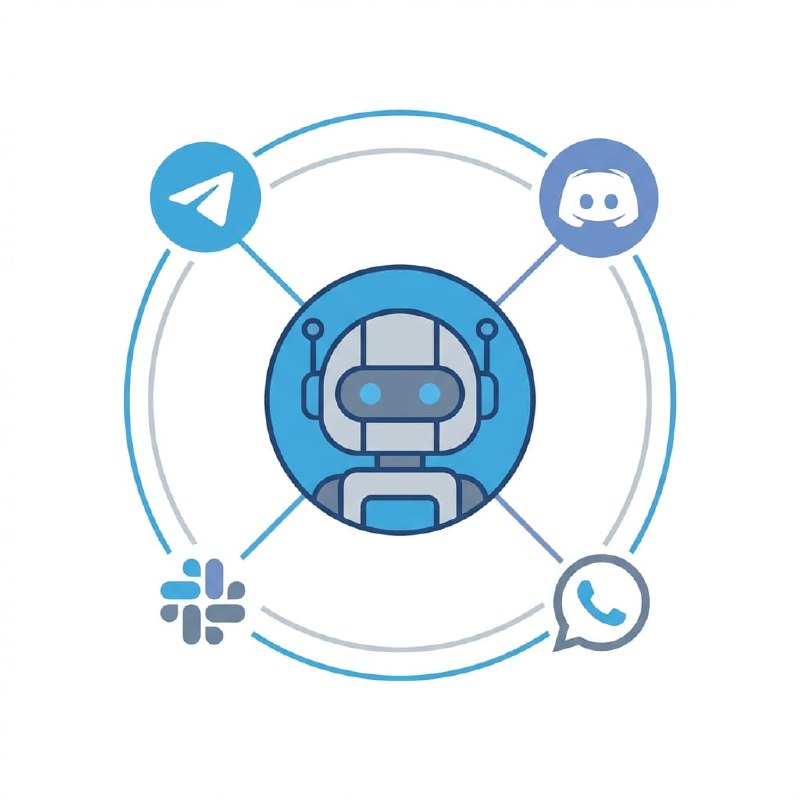
- A reusable AI avatar deployable across Telegram, Discord, Slack, and more
Step-by-Step Guide
Click each step to expand. The whole process takes about 5 minutes.
Create Your Weavin Account & Add Your API Key ~3 min
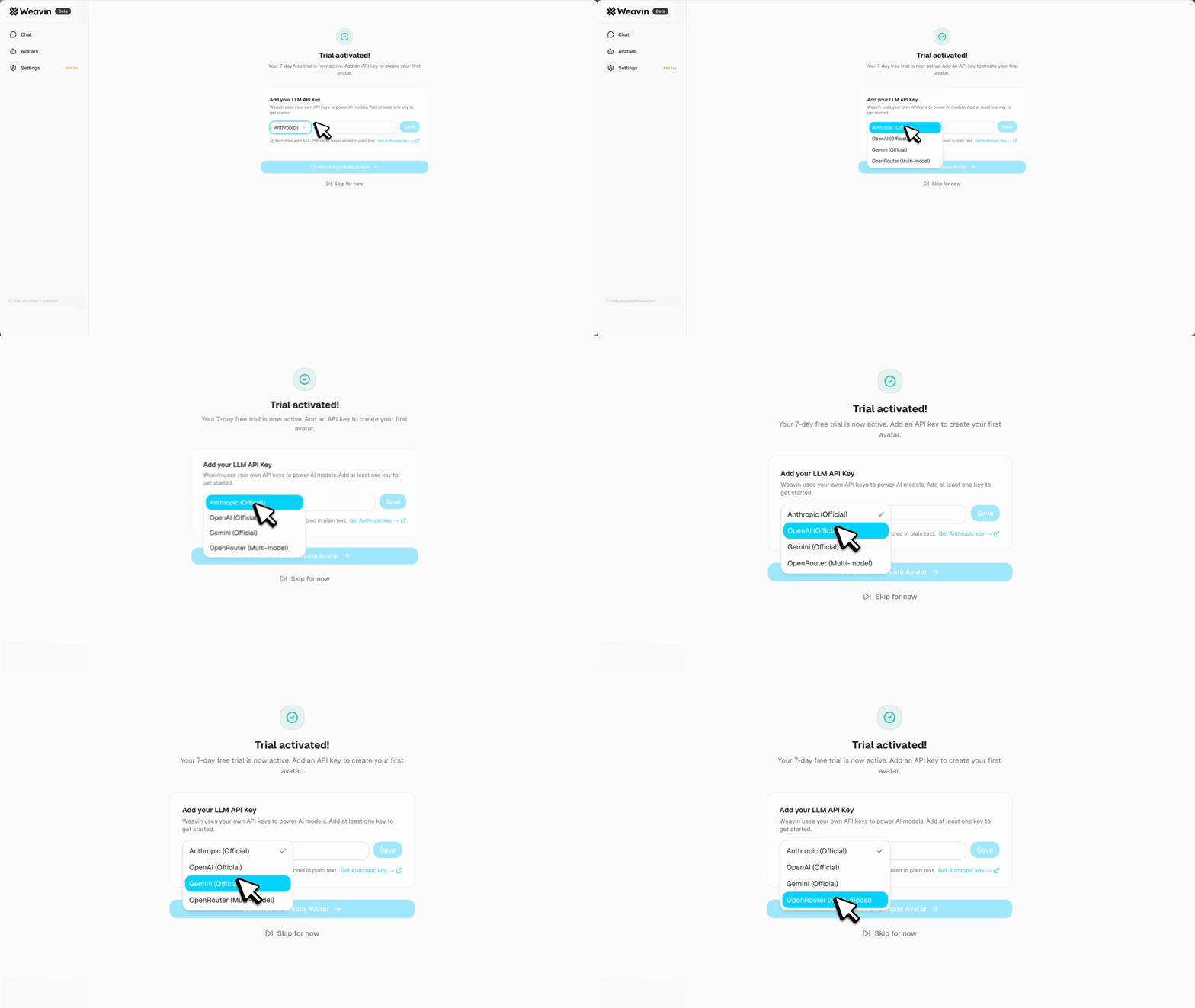
Before connecting OpenClaw to Telegram, you need a Weavin account with your own LLM API key configured (BYOK — Bring Your Own Key). Weavin supports Claude, GPT, and Gemini.
- Go to weavin.io and sign up for a free account
- Navigate to Settings → API Keys in your dashboard
- Click Add New Key and select your preferred provider (Anthropic for Claude, OpenAI for GPT, or Google for Gemini)
- Paste your API key into the field and click Save & Verify — Weavin will confirm the key is valid before proceeding
Create an OpenClaw Agent on Weavin ~4 min
OpenClaw is Weavin's intelligent agent framework. You'll configure your agent's personality, model, and behavior before linking it to any channel like Telegram.
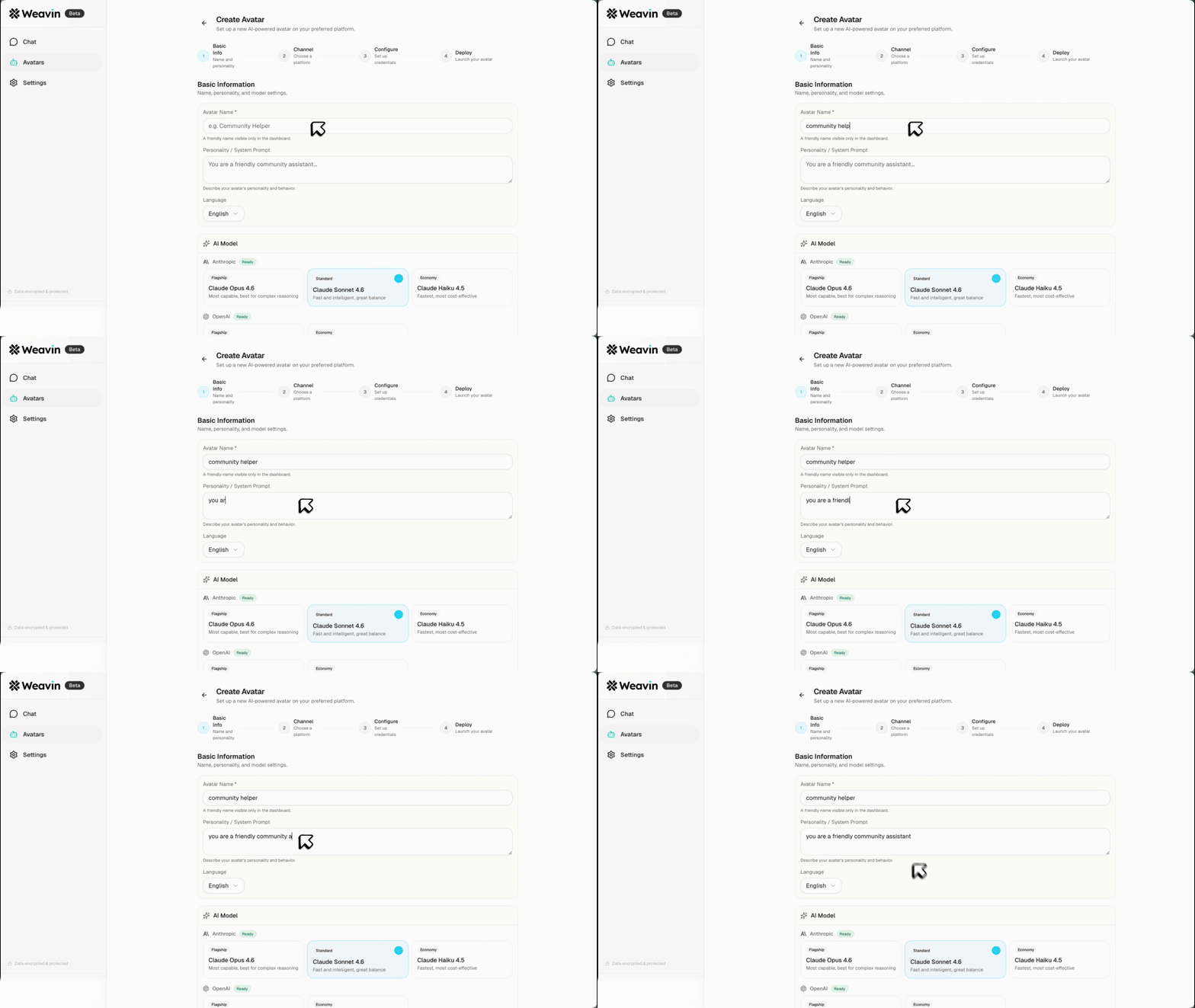
- From your Weavin dashboard, click Agents → New Agent
- Select OpenClaw as the agent type from the template list
- Under Model Settings, choose your provider and select a specific model (e.g. gpt-4o, claude-3-5-sonnet, or gemini-1.5-pro) — this will use the API key you added in Step 1
- Set your agent's name, system prompt, and any custom instructions, then click Save Agent
Generate a Telegram Bot Token & Link It to Weavin ~5 min
You'll need a Telegram Bot Token from BotFather. This token is then entered directly inside Weavin to authorize the connection — no third-party webhooks needed.
- Open Telegram and search for @BotFather, then send the command
/newbot - Follow the prompts to name your bot and receive your unique Bot Token (format: 123456:ABC-DEF...)
- Back in Weavin, open your OpenClaw agent and go to Channels → Connect Telegram
- Paste your Telegram Bot Token into the provided field and click Authorize — Weavin will automatically configure the webhook using your token
Test the Connection & Go Live ~2 min
With your API key active and Telegram connected, send a test message to confirm your OpenClaw agent is responding correctly through your own model quota.
- Open Telegram and search for your bot by the username you created in BotFather, then send a message like 'Hello!'
- Your bot should respond within seconds, powered by the LLM model you configured — check the Weavin Logs panel to confirm which model handled the request
- If there is no response, go to Weavin → Channels → Telegram and click Re-verify Webhook to refresh the connection
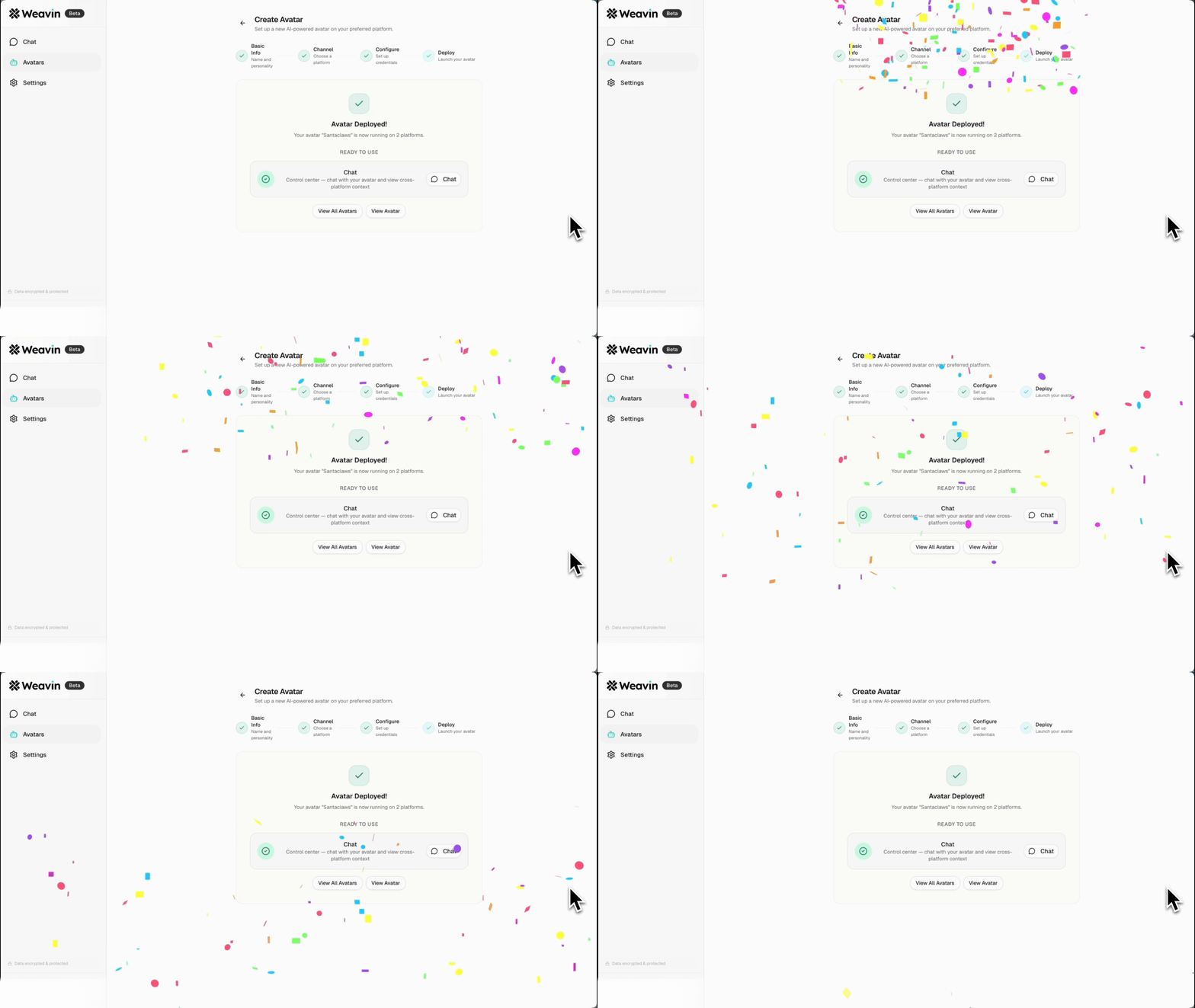
- Once confirmed working, toggle the agent status to Live in your Weavin dashboard to make it available to all users in your Telegram bot
What Happens After Launch
Real Use Cases Right Now